Learning more about Stata

1. Where to go from here

You now know plenty enough to use Stata. There is still much, much more to learn because Stata is a rich environment for doing statistical analysis and data management. What should you do to learn more?

  • Get an interesting dataset and play with Stata.
    1. Use the menus and dialog system to experiment with commands. Notice what commands show up in the Results window. You will find that Stata’s simple and consistent command syntax will make the commands easy to read so that you will know what you have done and easy to remember so that typing some commands will be faster than using menus.
    2. Play with graphs and the Graph Editor.
  • If you venture into the Command window, you will find that many things will go faster. You will also find that it is possible to make mistakes where you cannot understand why Stata is balking.
    1. Try help commandname or Help > Stata command… and entering the command name.
    2. Look at the command syntax and the examples in the help file, and compare them with what you typed. Compare them closely: small typographical errors make commands impossible for Stata to parse.
  • Explore Stata by selecting Help > Search…. You will uncover many statistical routines that could be of great use.
  • Look through the Combined subject table of contents in the Stata Index.
  • Read and work your way through the User’s Guide. It is designed to be read from cover to cover, and it contains most of the information you need to become an expert Stata user. It is well worth reading. If you are not this ambitious and instead prefer to sample the User’s Guide and the references, there is some advice later in this chapter for you.
  • Browse through the reference manuals to read about statistical methods you like to use, making use of the links to jump to other topics. The reference manuals are not meant to be read from cover to cover—they are meant to be referred to as you would an encyclopedia. You can find the datasets used in the examples in the manuals by selecting File > Example datasets… and then clicking on Stata 17 manual datasets. Doing so will enable you to work through the examples quickly.
  • Stata has much information, including answers to frequently asked questions (FAQs), at https://www.stata.com/support/faqs/.
  • There are many useful links to Stata resources at https://www.stata.com/links/. Be sure to look at these materials because many outstanding resources about Stata are listed here.
  • Join Statalist, a forum devoted to discussion of Stata and statistics.
  • Read The Stata Blog: Not Elsewhere Classified at https://blog.stata.com to read articles written by people at Stata about all things Stata.
  • Visit Stata on Facebook at https://facebook.com/statacorp, join Stata on Instagram at https://www.instagram.com/statacorp, find Stata on LinkedIn at https://www.linkedin.com/company/statacorp, and follow Stata on Twitter at https://twitter.com/stata to keep up with Stata.
  • Subscribe to the Stata Journal, which contains reviewed papers, regular columns, book reviews, and other material of interest to researchers applying statistics in a variety of disciplines. Visit https://www.stata-journal.com.
  • Many supplementary books about Stata are available. Visit the Stata Bookstore at https://www.stata.com/bookstore/.
  • Take a Stata NetCourse®. NetCourse 101 is an excellent choice for learning about Stata. See https://www.stata.com/netcourse/ for course information and schedules.
  • Attend a classroom or a web-based training course taught by StataCorp. Visit https://www.stata.com/training/classroom-and-web/ for course information and schedules.
  • View a webinar led by Stata developers. Visit https://www.stata.com/training/webinar/ for the current list of topics and schedule.
  • Watch Stata videos at https://www.youtube.com/user/statacorp.

2. Suggested reading from the User’s Guide and reference manuals

The User’s Guide is designed to be read from cover to cover. The reference manuals are designed as references to be sampled when necessary.

Ideally, after reading this Getting Started manual, you should read the User’s Guide from cover to cover, but you probably want to become at least somewhat proficient in Stata right away. Here is a suggested reading list of sections from the User’s Guide and the reference manuals to help you on your way to becoming a Stata expert.

This list covers fundamental features and points you to some less obvious features that you might otherwise overlook.

Basic elements of Stata

[U] 11 Language syntax

[U] 12 Data

[U] 13 Functions and expressions

Data management

[U] 6 Managing memory

[U] 22 Entering and importing data

[D] import — Overview of importing data into Stata

[D] append — Append datasets

[D] merge — Merge datasets

[D] compress — Compress data in memory

[D] frames intro — Introduction to frames

Graphics

[G] Stata Graphics Reference Manual

Reproducible research

[U] 16 Do-files [U] 17 Ado-files

[U] 13.5 Accessing coefficients and standard errors

[U] 13.6 Accessing results from Stata commands

[U] 21 Creating reports

[RPT] Dynamic documents intro — Introduction to dynamic documents

[RPT] putdocx intro — Introduction to generating Office Open XML (.docx) files

[RPT] putexcel — Export results to an Excel file

[RPT] putpdf intro — Introduction to generating PDF files

[R] log — Echo copy of session to file

Useful features that you might overlook

[U] 29 Using the Internet to keep up to date

[U] 19 Immediate commands

[U] 24 Working with strings

[U] 25 Working with dates and times

[U] 26 Working with categorical data and factor variables

[U] 27 Overview of Stata estimation commands

[U] 20 Estimation and postestimation commands

[R] estimates — Save and manipulate estimation results

Basic statistics

[R] anova — Analysis of variance and covariance

[R] ci — Confidence intervals for means, proportions, and variances

[R] correlate — Correlations of variables

[D] egen — Extensions to generate

[R] regress — Linear regression

[R] predict — Obtain predictions, residuals, etc., after estimation

[R] regress postestimation — Postestimation tools for regress

[R] test — Test linear hypotheses after estimation

[R] summarize — Summary statistics

[R] table intro — Introduction to tables of frequencies, summaries, and command results

[R] tabulate oneway — One-way table of frequencies

[R] tabulate twoway — Two-way table of frequencies

[R] ttest — t tests (mean-comparison tests)

Matrices

[U] 14 Matrix expressions [U] 18.5 Scalars and matrices

[M] Mata Reference Manual Programming

[U] 16 Do-files

[U] 17 Ado-files

[U] 18 Programming Stata

[R] ml — Maximum likelihood estimation

[P] Stata Programming Reference Manual

[M] Mata Reference Manual System values

[R] set — Overview of system parameters

[P] creturn — Return c-class values

3. Internet resources

The Stata website (https://www.stata.com) is a good place to get more information about Stata. You will find answers to FAQs, ways to interact with other users, official Stata updates, and other useful information. You can also join Statalist, a forum devoted to discussion of Stata and statistics.

You will also find information on Stata NetCourses®, which are interactive courses offered over the Internet that vary in length from a few weeks to eight weeks. Stata also offers in-person and web-based training sessions, as well as webinars on Stata features. Visit https://www.stata.com/learn/ for more information.

At the website is the Stata Bookstore, which contains books that we feel may be of interest to Stata users. Each book has a brief description written by a member of our technical staff explaining why we think this book may be of interest.

We suggest that you take a quick look at the Stata website now. You can register your copy of Stata online and request a free subscription to the Stata News.

Visit https://www.stata-press.com for information on books, manuals, and journals published by Stata Press. The datasets used in examples in the Stata manuals are available from the Stata Press website.

Also visit https://www.stata-journal.com to read about the Stata Journal, a quarterly publication containing articles about statistics, data analysis, teaching methods, and effective use of Stata’s language.

Visit Stata’s official blog at https://blog.stata.com for news and advice related to the use of Stata. The articles appearing in the blog are individually signed and are written by the same people who develop, support, and sell Stata. The Stata Blog: Not Elsewhere Classified also has links to other blogs about Stata, written by Stata users around the world.

Follow Stata on Facebook at https://facebook.com/statacorp, Twitter at https://twitter.com/stata, Instagram at https://www.instagram.com/statacorp, and LinkedIn at https://www.linkedin.com/company/statacorp. You may also follow Stata on Twitter at https://twitter.com/stata_fr or https://twitter.com/stata_es. These are good ways to stay up-to-the- minute with the latest Stata information. Watch short example videos of using Stata on YouTube at https://www.youtube.com/user/statacorp.

See [GSW] 19 Updating and extending Stata—Internet functionality for details on accessing official Stata updates and free additions to Stata on the Stata website.

Source: STATA (2021), Getting Started with Stata for Windows, Stata Press Publication.

Updating and extending Stata—Internet functionality

1. Internet functionality in Stata

Stata works well with the Internet. Stata can use datasets and view remote help files as though they were on your computer. Stata also can keep itself up to date (with your permission, of course). Finally, you can install community-contributed commands, which are commands that extend Stata’s functionality. These are commands that have been presented in the Stata Journal (SJ) or the Stata Technical Bulletin (STB) or have simply been written and shared by the greater Stata community.

This chapter will show you how you can expand Stata’s horizons.

2. Using files from the Internet

Stata understands URLs as though they were local file locations. If you know of a file on the web that you would like to use, be it a dataset, a graph, or a do-file, you can easily open it in Stata. Here is a small example.

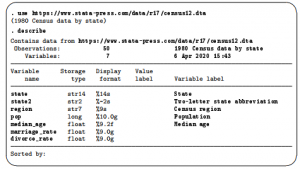
There are many datasets at https://www.stata-press.com/data/. Suppose that you would like to use the census12 dataset used in [U] 11 Language syntax and that you know that its location is https://www.stata-press.com/data/r17/census12.dta. Because you know that the command for opening a dataset is use, you could type the following:

This functionality is everywhere in Stata. Any command that reads a file with a filename in its syntax can use a web address as easily as a file that is stored on your computer.

This example used the HTTP protocol for retrieving the file. Stata also understands the HTTPS and FTP protocols.

3. Official Stata updates

By official Stata, we mean the pieces of Stata that are provided and supported by StataCorp. The other and equally important pieces are the community-contributed additions published in the SJ, distributed over Statalist, or distributed in other ways.

Stata can fetch both official updates and community-contributed commands from the Internet. Let’s start with the official updates. StataCorp often releases updates to official Stata. These updates add new features and, sometimes, fix bugs.

By default, Stata has automatic update checking turned on and set to check for updates every seven days. To change or check your settings, select Edit > Preferences > General preferences… and click on the General tab.

We recommend using automatic update checking because it is a simple, unobtrusive way to be sure that your copy of Stata is always up to date. If you keep this default, you will be prompted with a dialog when you start Stata if you have not recently checked for updates.

To manually check whether there are any official Stata updates, either click on Help > Check for updates or type update query in the Command window. Regardless of which choice you make, Stata goes to check for official updates. After it checks, it will show you your update status. If your copy of Stata is already up to date, you will be told. If your copy of Stata needs updating, you will be told, and a link, Install available updates, will show up in your Results window. You can click on this link or type update all and press Enter. In either case, Stata will download what is needed to bring your copy of Stata up to date. Stata will need to restart after being updated, so it gives you a chance to postpone the update in case there was something (such as saving the command history) you wanted to do in the current session.

Troubleshooting note: If you do not have write permission for C:\Program Files\Stata17, you cannot install official updates in this way. You may still download the official updates, but you will need to use the command-line version of update; see [U] 29 Using the Internet to keep up to date for instructions.

4. Automatic update checking

Stata can periodically check for updates for you. By default, Stata will check once every seven days for updates from the StataCorp website. The seven-day interval is from the last time an update query was performed, regardless of whether it was by Stata or by you. You can change the interval between checks.

Before Stata connects to the Internet to check for an update, it will ask you if you would like to check now, check the next time Stata is launched, or check after the next interval. You can disable the prompt and allow Stata to check without asking.

If an update is available, Stata will notify you. From there, you should follow the recommendations for updating Stata.

You can change the settings for automatic update checking by selecting Edit > Preferences > General preferences… and choosing General.

5. Finding community-contributed commands by keyword

Stata has a built-in utility created specifically to search the Internet for community-contributed Stata commands. You can access it by selecting Help > Search…, choosing Search net resources, and entering a keyword in the field. Choosing Help > SJ and community-contributed features yields more specific choices for searching. The utility searches all community-contributed commands on the Internet, including the entire collection of SJ and STB commands. The results are displayed in the Viewer, and you can click to go to any of the matches found.

For the syntax on how to use the equivalent search keywords, net command, see [R] search.

6. Downloading community-contributed commands

Downloading community-contributed commands is easy. Start by selecting Help > SJ and community-contributed features:

As the Viewer says, try Search… first.

Suppose that you were interested in finding more information or some community-contributed commands involving goodness of fit for logistic regression. You select Help > Search…, select Search all, type logistic goodness of fit in the search box, and click on the OK button.

The first entry points you to all the postestimation commands that are available after logistic regression. The second entry points to Stata’s built-in estat gof command specifically for computing goodness-of-fit statistics after logistic regression. You investigate this command and find it interesting. You see that the next three links point to FAQs and examples on UCLA’s website. Then the next three links are for articles in the SJ. You are interested in multinomial logistic regression, so you decide to check the last of these links. It points to an article in the SJ, volume 12, number 3 (third quarter). You should click on the st0269 link because it will go to the command associated with this article.


You will see that the package has one help file for the new commands. Click the st0269/mlogitgof.sthlp link to see if the mlogitgof command looks interesting. If you decide that you would like to install the command, click the Back button and click on the link click here to install. If you decide that you would like to use some of the ancillary files—files that typically help explain the workings of the command, you could download those, too. You do not need to worry—doing so will not interfere in any way with your copy of Stata. We will show you how to safely uninstall these commands shortly.

You can keep the community-contributed commands you have installed up to date by using the ado update command. Typing ado update will check for updates, while typing ado update, update will check for updates and install any available updates.

Now suppose that you decide that you would like to uninstall the package. Doing so is simple enough: select Help > SJ and community-contributed features, and click on the List link. You should see the following:

If you click on the one-line description of the package, you will see the full description of what has been installed. Here is what you would see if you scroll to the bottom, with a different install date, of course:

You can uninstall materials by clicking on click here to uninstall when you are looking at the package description.

For information on downloading community-contributed commands by using the net command, see [R] net.

Source: STATA (2021), Getting Started with Stata for Windows, Stata Press Publication.

Troubleshooting Stata

1. If Stata does not start

You tried to start Stata and it refused; Stata or your operating system presented a message explaining that something is wrong. Here are the possibilities:

Cannot find license file

This message means just what it says; nothing is too seriously wrong. Stata simply could not find the license file it was looking for. The most common reason for this is that you did not complete the installation process.

Did you enter the codes on your license to unlock Stata? If not, go back and complete the initialization procedure.

Error opening or reading the file

Something is distinctly wrong for purely technical reasons. Stata found the file that it was looking for, but there was an I/O error.

About the only way this situation could arise would be a hard-disk error. Stata technical support will be able to help you diagnose the problem; see [U] 3.8 Technical support.

License not applicable

Stata has determined that you have a valid Stata license, but the license does not apply to the version of Stata that you are trying to run.

The most common reason for this message is that you have a license for Stata/BE but you are trying to run Stata/SE or Stata/MP, or you have a license for Stata/SE but you are trying to run Stata/MP. If any of these is the case, insert the installation DVD, run the installer again, choose Modify, click on the Next button, and choose the appropriate edition.

Other messages

The other messages indicate that Stata thinks you are attempting to do something that you are not licensed to do. Most commonly, you are attempting to run Stata over a network when you do not have a network license, but there are many other alternatives. There are two possibilities: either you really are attempting to do something that you are not licensed to do or Stata is wrong. In either case, you are going to have to contact us. Your license can be upgraded, or if Stata is wrong, we can provide codes to make Stata stop thinking that you are violating the license; see [U] 3.8 Technical support.

2. Troubleshooting tips

If you experience an unexpected problem, first make sure that you are running the most current version of Stata (see [GSW] 19 Updating and extending Stata—Internet functionality for information on updating). If the problem still exists, look at the frequently asked questions (FAQs) for Windows in the user-support section of the Stata website, https://www.stata.com/support/faqs/windows/. You may find the answer to the problem there. If not, we can help, but you must give us as much information as possible.

Reboot your computer, restart Stata, and try to reproduce the problem, writing down everything you do before the fault occurs. We will want that information.

If Stata used to work on your computer but suddenly stopped working, try to remember any hardware or software that you have recently installed.

Also give us as much information about your computer as possible. What version of Windows are you running? How much memory do you have? What processor do you have? What brand is your computer? Finally, we need your Stata serial number and the revision date of your version of Stata. Include them if you email, and know them if you call. You can obtain them by typing the about command in Stata’s Command window. about lets you know everything about your copy of Stata, including the version and the date it was produced.

Source: STATA (2021), Getting Started with Stata for Windows, Stata Press Publication.

Advanced Stata usage

1. The Windows Properties Sheet

When you double-click on a shortcut to start an application in Windows, you are actually executing instructions defined in the shortcut’s Properties Sheet. To open the Properties Sheet for any shortcut, right-click on the shortcut, and select Properties.

Open the Properties Sheet for Stata’s shortcut. Click on the Shortcut tab. You will see something like the following:

The field names may be slightly different, depending on the version of Windows that you are running. The names and locations of files may vary from this. There are two things to pay attention to: the Target and Start in fields. Target is the actual command that is executed to invoke Stata. Start in is the directory to switch to before invoking the application. You can change these fields and then click on OK to save the updated Properties Sheet.

You can have Stata start in any directory you desire. If necessary, delete the parameter /UseReg­istryStartin from your Target field. Then change the Start in field of Stata’s Properties Sheet to the location you would like Stata to have as its default working directory. Of course, once Stata is running, you can change directories whenever you wish by using File > Change working directory…; see also [D] cd.

2. Making shortcuts

You can arrange to start Stata without going through the Start menu by creating a shortcut on the Desktop. The easiest way to do this is to copy the existing Stata shortcut to the Desktop. You can also create a shortcut directly from the Stata executable. Here are the details:

  1. Open the C:\Program Files\Stata17 folder or the folder where you installed Stata.
  2. In the folder, find the executable for which you want a new shortcut. The filenames for the 64-bit versions of Stata are

Stata/MP:   StataMP-64.exe

Stata/SE:     StataSE-64.exe

Stata/BE:    Stata-64.exe

Right-click on and drag the appropriate executable onto the Desktop.

  1. Release the mouse button, and select Create Shortcut(s) Here from the menu that appears.

You have now created a shortcut. If you want the shortcut in a folder rather than on the Desktop, you can drag it into whatever folder appeals to you.

You set the properties for this shortcut just as you would normally. Right-click on the shortcut, and select Properties. Edit the Properties Sheet as explained above in [GSW] B.1 The Windows Properties Sheet.

3. Executing commands every time Stata is started

Stata looks for the file profile.do when it is invoked and, if it finds it, executes the commands in it. Stata looks for profile.do first in the directory where Stata is installed, then in the current directory, then along your path, then in your home directory as defined by Windows’s USERPROFILE environment variable (typically C:\Users\username), and finally along the ado-path (see [P] sysdir). We recommend that you put profile.do in your home directory.

If you create a shortcut that starts in a different directory, it will run the profile.do from that directory. This feature allows you to have different profile.do files for different projects.

Say that every time you start Stata, you would like to start a dated log for the session. In your default working directory, say, C:\Users\Stata\Documents\Stata, create the file profile.do containing this rather odd-looking command:

log using ‘: display “/.tCCCYY-NN-DD-HH-MM-SS ///

Clock(“‘c(current_date)’ ‘c(current_time),“,”DMYhms”)’, ///

name(default_log_file)

When you invoke Stata, the usual opening appears but with the following additional command, which will be executed:

running C:\Users\Stata\Documents\Stata\profile.do …

How does the command work? Let’s work from the inside out:

  • c(current_date) and c(current_time) are local system macros containing the current date and current time. See [P] creturn for more information.
  • The left (‘) and right (’) quotes around the local macros expand them. See [P] macro for a full explanation.
  • The Clock() function uses the resulting date string and the date mask “DMYhms” to create a datetime number Stata understands. See [D] Datetime.
  • The format %tCCCYY-NN-DD-HH-MM-SS formats this number in year-month-day-hour-minute- second form because this will make the files sort nicely. See [D] Datetime display formats for the details.
  • The odd-looking display …’ allows the formatted date to be used directly in the command as the file name. This is the advanced concept of an in-line expansion of a macro function. You can see more in [P] macro.
  • The log using command starts a log file, such as shown in [GSW] 16 Saving and printing results by using logs.
  • The name option gives the log file the internal name default_log_file so that it will not likely conflict with other log files. See [R] log for details.
  • Finally, the /// notations are continuation comments so that the three separate lines are interpreted as a single command. See [P] comments for more about comments.

There are many advanced Stata programming concepts in this one single command!

profile.do is treated just as any other do-file once it is executed; results are just the same as if you had started Stata and then typed run profile.do. The only special thing about profile.do is that Stata looks for it and runs it automatically.

System administrators might also find sysprofile.do useful. This file is handled in the same way as profile.do, except that Stata first looks for sysprofile.do. If that file is found, Stata will execute any commands it contains. After that, Stata will look for profile.do and, if that file is found, execute the commands in it.

One example of how sysprofile.do might be useful would be when system administrators want to change the path to one of Stata’s system directories. Here sysprofile.do could be created to contain the command

sysdir set SITE “\\Matador\StataFiles”

See [U] 16 Do-files for an explanation of do-files. They are nothing more than text files containing sequences of commands for Stata to execute.

4. Other ways to launch Stata

The first time that you start Stata for Windows, Stata registers with Windows the actions to perform when you double-click on certain types of files. You can then start a new instance of Stata by double-clicking on a Stata .dta dataset, a Stata .do do-file, or a Stata .gph graph file. In all cases, your current working directory will become the folder containing the file you have double-clicked.

Stata will behave as you would expect in each case. If you double-click on a dataset, Stata will open the dataset after Stata starts. If you double-click on a graph, the graph will be opened by Stata. If you double-click on a do-file, the do-file will be opened in the Do-file Editor.

If you would rather run a do-file directly, right-click on the do-file. You will see menu items for Execute (do) and Execute quietly (run). These items will complete the requested action in a new instance of Stata.

If you want to edit a do-file, look at a graph, or open a dataset without starting a new instance of Stata, drag the file over Stata’s main window.

5. Stata batch mode

You can run large jobs in Stata in batch mode. There are a few different ways to do this, depending on what your goals are.

Method 1

If you have a particular location where your log file should be after the job is done, this is the method you should use.

In Windows 10, type cmd in the search box in the taskbar, and press Enter.

In Windows 8, point your mouse at the hotspot in the right corner of the screen to access the Charms Sidebar, select the search charm, and start typing command in the search field. Once the list of possible applications shrinks down to just the Command Prompt app, press Enter. In older versions of Windows, click on the Start menu and choose Run…. If you are working on Windows 7 and do not see the Run… menu item, then you need to click on Start > All Programs > Accessories > Run. In the Open field, type

cmd

and press Enter.

You should now have a command prompt window open. Change the current directory to the place you would like the log file to be by using the cd command. For example, suppose your bigjob do-file is in C:\Users\someone\statastuff, and you would like to save your log in C:\Users\someone\statalogs. You would type the following to suppress all screen output and place the log file in the proper location:

cd C:\Users\someone\statalogs

“C:\Program Files\Stata17\StataSE.exe” /e do “C:\Users\someone\statastuff\bigjob”

You must specify the location of the Stata executable.

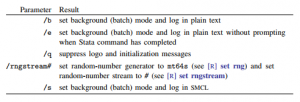
The /e parameter above tells Stata how to behave when running in batch mode. The available parameters and their purposes are

Method 2

If you would like to have a batch job that you could run at a particular time or that you could save for later use, you can use the Task Scheduler, which is part of most Windows installations.

This is a bit more advanced, and its implementation differs slightly for each kind of Windows, but here is the general gist.

In Windows 10, you can search for the Task Scheduler in the search box in the taskbar. In Windows 8, you can search for the Task Scheduler by using the search charm. In earlier versions of Windows, you can generally find the Task Scheduler by clicking Start > All Programs > Accessories > System Tools > Task Scheduler. Once you have opened the Task Scheduler, click on Create Basic Task, and follow the steps of the Basic Task Schedule Wizard to schedule a do-file to run in batch mode. You must specify the /b or /e option. In the Start in field, type the path where you would like the log file to be saved. When this file runs, all output will be suppressed and written to a log file that will be saved in the path specified.

General notes

While your do-file is executing, the Stata icon will appear on the taskbar.

If you click on the icon on the taskbar, Stata will display a box asking if you want to cancel the batch job.

Once the do-file is complete, Stata will flash the icon on the taskbar on and off. You can then click on the icon to close Stata. If you wish for Stata to automatically exit after running the batch do-file, use /e rather than /b.

You do not have to run large do-files in batch mode. Any do-file that you run in batch mode can also be run interactively. Simply start Stata, type log using filename, and type do filename. You can then watch the do-file run, or you can minimize Stata while the do-file is running.

6. Running simultaneous Stata sessions

Each time you double-click on the Stata icon or launch Stata in any other way, you invoke a new instance of Stata, so if you want to run multiple Stata sessions simultaneously, you may. The title bar of each new Stata that is invoked will reflect its instance number.

7. Changing Stata’s locale

To change the locale of Stata to English, type

set locale_ui en

To change it back to match the locale set for your operating system, type

set locale_ui default

For a complete explanation of locales and Stata, see [U] 12.4.2.4 Locales in Unicode.

8. More

If you would like Stata to pause every time the screen fills with results, type set more on. This will cause a —more— prompt to appear at the bottom of the Results window whenever there is more information to be displayed than can fit on the screen. This happens, for example, when you are listing many observations.

If you want to see the next screen of text, you have a few options: press any key, such as the Spacebar;

click on the More button,  ; or click on the —more— link at the bottom of the Results window.

To see just the next line of text, press Enter. Pressing q will interrupt the command. If you click on the arrow of the More button, you can also select the Run to completion menu item to let the command completely finish.

9. Memory size considerations

Memory management in Stata is automatic. For details on efficiency tweaks needed by a very few Stata users, look at [D] memory.

Source: STATA (2021), Getting Started with Stata for Windows, Stata Press Publication.

More on Stata for Windows

1. Using Stata datasets and graphs created on other platforms

Stata will open any Stata .dta dataset or .gph graph file regardless of the platform on which it was created, even if it was a Mac or Unix system. Also Stata for Mac and Stata for Unix users can use any files that you create. If you transfer a Stata file by using file transfer protocol (FTP), just remember to transfer by using binary mode rather than ASCII.

2. Exporting a Stata graph to another document

Suppose that you wish to export a Stata graph to a document created by your favorite word processor or presentation application. You have two main choices for exporting graphs: you may copy and paste the graph by using the Clipboard, or you may save the graph in one of several formats and import the graph into the application.

2.1. Exporting the graph by using the Clipboard

The easiest way to export a Stata graph into another application is by copying and pasting.

Either create your graph or redisplay an existing graph. To copy it to the Clipboard, right-click on the Graph window, and select Copy. Stata will copy the graph as an Enhanced Metafile (EMF); this ensures that the receiving application obtains it in the highest resolution possible.

A metafile contains the commands necessary to redraw the graph. That is, a metafile is a collection of lines, points, text, and color information. Metafiles, therefore, can be edited in a structured drawing program.

After you have copied the graph to the Clipboard, switch to the application into which you wish to import the graph and paste it. In most applications, this is accomplished by selecting Edit > Paste. Consult the documentation for your particular application for more details.

2.2. Exporting the graph to a file

Stata can export graphs to several different file formats. If you right-click on a graph, select Save as…, and then click on the drop-down menu next to Save as type, you will see that Stata can save in the following file types:

Enhanced Metafile (EMF, .emf), Enhanced PostScript (EPS, .eps) with or without a TIFF Preview, Joint Photographic Experts Group (JPEG, .jpg) with High Quality or Maximum Quality, Portable Document Format (PDF, .pdf), Portable Network Graphics (PNG, .png), PostScript (PS, .ps), Scalable Vector Graphics (SVG, .svg), and Tag Image File Format (TIFF, .tif).

EMF, EPS, PDF, PS, and SVG are vector formats, whereas JPEG, PNG, and TIFF are bitmap formats. If you wish to include a thumbnail of the graph with an EPS file, choose EPS with TIFF Preview (*.eps). Choosing the preview option does not affect how the graph is printed. PNG and SVG are well suited for placing graphs on a webpage. See [G-2] graph export for more information.

3. Installing Stata for Windows on a network drive

You will need a network license before you can install Stata on a network drive. You can install Stata from the server; or if you have the appropriate privileges, you can install Stata directly to the network drive.

Once Stata is installed, run it to initialize the license. Mount the network drive that Stata is installed on from a workstation. Right-click on the Desktop or on the Windows Start menu, and select New > Shortcut. Type the path for the Stata executable into the edit field, or click on Browse… to locate it. Type Stata as the name of the shortcut.

Once a shortcut for Stata has been created, right-click on it, and select Properties. Set the default working directory for Stata by changing the Start in field to a local drive that users have write access to. This is where Stata will store datasets, graphs, and other Stata-related files. If the workstation will be used by more than one user, consider changing the Start in field to the environment variable %HOMEDRIVE%%HOMEPATH%. Doing so will set the default working directory to each user’s home directory.

4. Calling Stata from Python

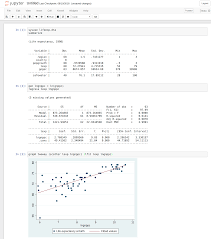
You can call Stata from Python using the pystata Python package. This includes a suite of API func­tions and IPython magic commands that can be used to interact with Stata and Mata. To learn more about the pystata Python package, view the online documentation at https://www.stata.com/python/pystata. Or see [P] PyStata module for more information.

5. Changing a Stata for Windows license

If you have already installed Stata and your license needs to be changed, go to Help > About Stata, then click on the Update license… button on the lower left. You can either browse renewal options or enter a new License and Activation Key.

Source: STATA (2021), Getting Started with Stata for Windows, Stata Press Publication.

Typographical Note and Example Stata Session

1. Typographical Note

This book employs several typographical conventions as a visual cue to how words are used:

■ Commands typed by the user appear in bold. When the whole command line is given, it starts with a period, as seen in a Stata Results window or log (output) file:

. correlate extent area volume temp

  • Variable or file names within these commands appear in italics to emphasize the fact that they are arbitrary and not a fixed part of the command.
  • Names of variables or files also appear in italics within the main text to distinguish them from ordinary words.
  • Items from Stata’s menus are shown in the Arial font , with successive options separated by “ > ”. For example, we can open an existing dataset by selecting File > Open , and then finding and clicking on the name of the particular dataset. Some common menu actions can be accomplished either with text choices from Stata’s top menu bar,

File   Edit   Data   Graphics   Statistics   User   Window   Help

or with the row of icons below these. For example, selecting File > Open is equivalent to clicking the leftmost icon, a tiny picture of an opening file folder . . One could also accomplish the same thing by typing a direct command of the form

. use filename

Thus, we show the calculation of summary statistics for a variable named extent as follows:

These typographic conventions exist only in this book, and not within the Stata program itself. Stata can display a variety of onscreen fonts, but it does not use italics in commands. Once Stata log files have been imported into a word processor, or a results table has been copied and pasted, you might want to format them in a Courier font, 10 point or smaller, so that columns will line up correctly.

In its commands and variable names, Stata is case sensitive. Thus, summarize is a command, but Summarize and SUMMARIZE are not. Extent and extent would be two different variables.

2. An Example Stata Session

As a preview showing Stata at work, this section retrieves and analyzes a previously-created dataset named Arctic9.dta. This small time series covers satellite-era (1979 to 2011) observations of ice on the Arctic Ocean in September, at the lowest point of its annual cycle. The data come from three different sources (see the appendix on Data Sources). One variable, extent, is a satellite-based measure of the Northern Hemisphere sea area with at least 15% ice concentration each September. Area numbers are somewhat less than extent, representing the area of sea ice itself. Another variable, tempN, describes mean annual surface air temperature above 64°N latitude. Temperatures are expressed as anomalies, which are deviations from the 1951-1980 average, in degrees Celsius. We have 33 observations (years) and 8 variables.

If we might eventually want a record of our session, the best way to prepare for this is by opening a log file at the start. Log files contain commands and results tables, but not graphs. To begin a log file, choose File > Log > Begin … from the top menu bar, and specify a name and folder for the resulting log file. Alternatively, a log file could be started by choosing File > Log > Begin from the top menu bar, or by typing a direct command such as

. log using mondayl

Multiple ways of doing such things are common in Stata. Each way has its own advantages, and each suits different situations or user tastes.

Log files can be created either in a special Stata format (.smcl), or in ordinary text or ASCII format (.log). A .smcl (Stata markup and control language) file will be nicely formatted for viewing or printing within Stata. It could also contain hyperlinks that help to understand commands or error messages. .log (text) files lack such formatting, but are simpler to use if you plan later to insert or edit the output in a word processor. After selecting which type of log file you want, click Save. For this session, we will create a .smcl log file named mondayl.smcl.

An existing Stata-format dataset named Arctic9.dta will be analyzed here. To open or retrieve this dataset, we again have several options:

select File > Open > Arctic9.dta using the top menu bar;

click on  > Arctic9.dta; or

type the command use Arctic9 .

Under its default Windows configuration, Stata looks for data files in the user’s Documents directory. If the file we want is in a different folder, we could specify its location in the use command,

. use C:\books\sws_12\data\Arctic9

or change the session’s default folder by issuing a cd (change directory) command,

. cd C:\books\sws_12\data\

. use Arctic9

or select File > Change Working Directory … from the menus. Often, the simplest way to retrieve a file will be to choose File > Open and browse through folders in the usual way.

To see a brief description of the dataset now in memory, type

Many Stata commands can be abbreviated to their first few letters. For example, we could shorten describe to just the letter d. Using menus, the same table could be obtained by choosing

Data > Describe data > Describe data in memory > (OK).

This dataset has only 33 observations and 8 variables, so we could list all its contents by typing the command list (or the letter l; or Data > Describe data > List data > (OK)). To save space here we list only the first 10 years, typing list in 1/10:

Analysis could begin with a table of means, standard deviations, minimum values, and maximum values. Type summarize or su; or select from the drop-down menus, Statistics > Summaries, tables, and tests > Summary and descriptive statistics > Summary statistics > (OK)

. summarize

To print results from the session so far, click on the Results window and then , or from the menus choose File > Print > Results .

To copy a table, commands, or other information from the Results window into a word processor, drag the mouse to select the results you want, right-click the mouse, and then choose Copy Text from the mouse’s menu. Switch to your word processor and, at the desired insertion point either right-click and Paste or click the word processor’s paste icon. A final step in most cases will be to change the pasted text to a fixed-width font such as Courier.

Arctic sea ice extent, area and volume should be related to annual air temperature, not only because warmer air contributes to ice melting but also because surface air temperatures over ice- free seas will be warmer than temperatures over ice. We can see the correlations among variables by typing correlate followed by a list of variables.

September sea ice extent, area and volume all have strong positive correlations, as one might expect. Their correlation with annual air temperature is negative: the warmer the air, the less ice (or vice versa). The same correlation matrix could be obtained through menus:

Statistics > Summaries, tables, and tests > Summary and descriptive statistics > Correlation and covariance

Then choose the variables to be correlated. Although menu choices often are straightforward to use, you can see that they are more complicated to describe than the simple text commands. From this point on, we will focus primarily on the commands, mentioning menu alternatives only occasionally. Fully exploring the menus, and working out how to use them to accomplish the same tasks, will be left to the reader. For similar reasons, the Stata reference manuals likewise take a command-based approach.

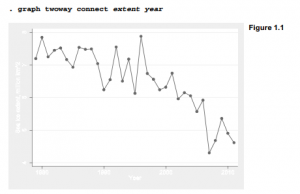
So ice extent, area, volume and temperature all are related. How have they changed over time? Figure 1.1 plots extent against year, produced by the graph twoway connect command. The first-named variable in this command, extent, defines the vertical or y axis; the last-named variable, year, defines the horizontal or x axis. We see an uneven but steepening downward pattern, as September sea ice extent declined by more than a third over this period.

To print this graph, go to the Graph window and click its print icon “ or File > Print. To copy the graph directly into a word processor or other document, right-click on the graph, and select Copy Graph. Switch to your word processor, go to the desired insertion point, and issue an appropriate paste command such as Edit > Paste, Edit > Paste Special (Metafile) , or click a paste icon (different word processors will handle this differently).

To save the graph for future use, either right-click and Save Graph, click in the Graph window, or select File > Save As from the Graph window’s top menu bar. The Save as type submenu offers several different file formats. On a Windows system, the choices include

Stata graph (*.gph) (A “live” graph, containing enough information for Stata to edit)

As-is graph (*.gph) (A more compact Stata graph format)

Windows Metafile (*.wmf)

Enhanced Metafile (*.emf)

Portable Network Graphics (*.png)

TIFF (*.tif)

PostScript (*.ps)

Encapsulated PostScript with or without TIFF preview (*.eps)

Portable Document File (*.pdf)

Other platforms such as Mac or Linux offer different choices for graph file formats. Regardless of which format we want, it often is worthwhile to save one copy of our graph in live .gph format. Such live .gph-format graphs can later be retrieved, combined, recolored or reformatted using the graph use or graph combine commands, or edited using the Graph Editor (Chapter 3).

Through all of the preceding analyses, the log file mondayl.smcl has been storing our results. An easy way to review this file to see what we have done is to open the file in its own Viewer window by selecting

File > Log > View > OK

We could print this log file by clicking the icon on the top bar of the log file’s Viewer window. Log files close automatically at the end of a Stata session, or earlier if instructed by > Close log file, typing the command log close, or by choosing

File > Log > Close

Once closed, the file mondayl.smcl could be opened to view again through File > Log > View or during a subsequent Stata session. To create an output file that can be opened easily by your word processor, either translate the log file from .smcl (a Stata format) to .log (standard ASCII text format) by typing

. translate mondayl.smcl monday1.log

or start out by creating the file in .log instead of .smcl format. You can also start and stop a log file temporarily, any number of times:

File > Log > Suspend

File > Log > Resume

The log icon on Stata’s main icon menu bar can also perform all these tasks.

Source: Hamilton Lawrence C. (2012), Statistics with STATA: Version 12, Cengage Learning; 8th edition.

Stata Documentation and Resources

1. Stata’s Documentation and Help Files

The complete Stata 12 Documentation Set includes 19 volumes: a slim Getting Started manual (for example, Getting Started with Stata for Windows), the more extensive User’s Guide, the encyclopedic four-volume Base Reference Manual, and separate reference manuals on data management, graphics, longitudinal and panel data, matrix programming (Mata), multiple imputation, multivariate statistics, programming, structural equation modeling, survey data, survival analysis and epidemiological tables, and time series analysis. Getting Started helps you do just that, with the basics of installation, window management, data entry, printing, and so on. The User’s Guide contains an extended discussion of general topics, including resources and troubleshooting. Of particular note for new users is the User’s Guide section on “Commands everyone should know.” The Base Reference Manual lists all Stata commands alphabetically. Entries for each command include the full command syntax, descriptions of all available options, examples, technical notes regarding formulas and rationale, and references for further reading. Data management, graphics, panel data etc. are covered in the general references, but these complicated topics get more detailed treatment and examples in their own specialized manuals. A Quick Reference and Index volume rounds out the whole collection. Although the physical manuals fill a bookshelf, complete PDFs can be accessed within Stata at any time through Help > PDF Documentation, or through links if you type help followed by a specific command name.

When we are in the midst of a Stata session, it is easy to ask for onscreen help, which in turn can connect with the manuals. Selecting Help from the top menu bar invokes a drop-down menu of further choices, including specific commands, what’s new, online updates, the Stata Journal and user-written programs, or connections to Stata’s website (www.stata.com). Choosing Search allows keyword searching of Stata’s documentation, of Net resources, or both. Alternatively, choosing Contents (or typing help) allows us to look up how to do things by category. The help command is particularly useful when used with a command name. Typing help correlate, for example, causes a description of that command to appear in a Viewer window. Like the reference manuals, this onscreen help provides command syntax diagrams and complete lists of options. It also includes some examples, although often less detailed and without the technical discussions found in the manuals. The onscreen help has several advantages over the manuals, however. The Viewer allows searching for keywords in the documentation or on Stata’s website. Hypertext links take you directly to related entries. Onscreen help can also include material about recent updates, or the unofficial Stata programs that you have downloaded from Stata’s website or from other users.

2. Searching for Information

Selecting Help > Search > Search documentation and FAQs provides a direct way to search for information in Stata’s documentation or in the website’s FAQs (frequently asked questions) and other pages. Alternatively, we can search net resources including the Stata Journal. Search results in the Viewer window contain clickable hyperlinks leading to further information or original citations.

The search command can do similar things. One specialized use for a quick search command is to provide more information on those occasions when our command does not succeed as planned, but instead results in one of Stata’s cryptic numerical error messages. For example, table is a Stata command, but it requires information about what exactly we want in our table. If we mistakenly type table by itself, Stata responds with the error message and cryptic “return code” r(100):

. table

varlisl required

r(100)

Clicking on the return code r(100) in this error message brings up a more informative note. We could also find this note by typing search rc 100. Type help search for more about this command.

3. StataCorp

The mailing or physical address is

StataCorp

4905 Lakeway Drive

College Station, TX 77845 USA

Telephone access includes an easy-to-remember 800 number.

telephone: 1-800-782-8272 (or 1-800-STATAPC) U.S.

                  1-800-248-8272 Canada

                  1-979-696-4600 other International

fax:            1-979-696-4601

For orders, licensing, and upgrade information, you can contact StataCorp by e-mail at

service@stata.com

or visit their website at

http://www.stata.com

Stata Press also has its own website, containing information about Stata publications including the datasets used for examples.

http://www.stata-press.com

The refereed Stata Journal has become an important resource as well.

http://www.stata-journal.com

Stata’s main website, www.stata.com, provides extensive user resources, starting with pages describing Stata products in detail, how to order Stata, and many kinds of user support such as:

FAQs — Frequently asked questions and their answers. If you are puzzled by something and can’t find the answer in the manuals, check here next — it might be a FAQ. Example questions range from basic questions such as “How can I convert other packages’ files to Stata format data files?” to more technical queries like “How do I impose the restriction that rho is zero using the heckman command with full ml?”

Updates — Online updates within major versions are free to registered Stata users. These provide a fast, simple way to obtain the latest enhancements, bug fixes, etc. for your current version. Instead of going to the website you can ask within Stata whether updates exist for your version, and initiate the update process by typing the command

. update query

Technical support — Technical support can be obtained by sending e-mail messages to

tech-support@stata.com

Responses tend to be prompt and helpful. Before writing for technical help, though, you should check whether your question is a FAQ.

Training — Enroll in web-based NetCourses on selected topics such as Introduction to Stata, Introduction to Stata Programming, or Advanced Stata Programming.

Stata News — The Stata News contains information about software features, current NetCourses, recent issues of the Stata Journal, and other topics.

Publications — Links to information about the Stata Journal, documentation and manuals, a bookstore selling books about Stata and other up-to-date statistical references, and Stata’s author support program for people writing new books about Stata. The following sections have more to say about the Stata Journal and Stata books.

Stata’s website hosts The Stata Blog,

http://blog.stata.com/

Users of social media might also find it entertaining and informative to follow Stata on Twitter (www.twitter.com) or like Stata on Facebook (www.facebook.com).

4. The Stata Journal

From 1991 through 2001, a bimonthly publication called the Stata Technical Bulletin (STB) served as a means of distributing new commands and Stata updates, both user-written and official. Accumulated STB articles were published in book form each year as Stata Technical Bulletin Reprints, which can be ordered directly from StataCorp. With the growth of the Internet, instant communication among users became possible. Program files could easily be downloaded from distant sources. A bimonthly printed journal and disk no longer provided the best avenues either for communicating among users, or for distributing updates and user-written programs. To adapt to a changing world, the STB had to evolve into something new.

The Stata Journal was launched to meet this challenge and the needs of Stata’s broadening user base. Like the old STB, the Stata Journal contains articles describing new commands by users along with unofficial commands written by StataCorp employees. New commands are not its primary focus, however. The Stata Journal also contains refereed expository articles about statistics, book reviews, tips on using Stata, and a number of interesting columns, including Speaking Stata by Nicholas J. Cox, on effective use of the Stata programming language. The Stata Journal is intended for novice as well as experienced Stata users. For example, here are the contents from the June 2012 issue.

Articles and columns

“A robust instrumental-variables estimator,” R. Desbordes, V. Verardi

“What hypotheses do ‘nonparametric’ two-group tests actually test?” R.M. Conroy

“From resultssets to resultstables in Stata,” R.B. Newson

“Menu-driven X-12-ARIMA seasonal adjustment in Stata,” Q. Wang, N. Wu

“Faster estimation of a discrete-time proportional hazards model with gamma frailty,” M.G. Farnworth

“Threshold regression for time-to-event analysis: The stthreg package,” T. Xiao, G.A. Whitmore, X. He, M.-L.T. Lee

“Fitting nonparametric mixed logit models via expectation-maximization algorithm,” D. Pacifico

“The S-estimator of multivariate location and scatter in Stata,” V. Verardi, A. McCathie

“Using the margins command to estimate and interpret adjusted predictions and marginal effects,” R. Williams

“Speaking Stata: Transforming the time axis,” N.J. Cox Notes and Comments

“Stata tip 108: On adding and constraining,” M.L. Buis

“Stata tip 109: How to combine variables with missing values,” P.A. Lachenbruch

“Stata tip 110: How to get the optimal k-means cluster solution,” A. Makles

Software Updates

The Stata Journal is published quarterly. Subscriptions can be purchased by visiting www.stata- journal.com. The www.stata-journal.com archives list contents of back issues, which you can order individually; articles three years old or more can be downloaded for free. Of historical interest, a special issue on the occasion of Stata’s 20th anniversary (5(1), 2005) contains articles about the early development of Stata, and one about the first Stata book: “A short history of Statistics with Stata.”

Source: Hamilton Lawrence C. (2012), Statistics with STATA: Version 12, Cengage Learning; 8th edition.

Creating a New Stata Dataset by Typing in Data

Data that were previously saved in Stata format can be retrieved into memory either by typing a command of the form use filename, or by menu selections. This section describes basic tricks for creating Stata-format datasets in the first place. We could start simply by typing data into the Data Editor by hand. A by-hand approach is practical with small datasets, or may be unavoidable when the original information is printed material such as a table in a book. If the original information is in electronic format such as a text file or spreadsheet, however, more direct approaches are possible.

Table 2.1 lists some information about Canadian provinces and territories that can be used to illustrate the by-hand approach. These data are from the Federal, Provincial and Territorial Advisory Committee on Population Health, 1996. Canada’s newest territory, Nunavut, is not listed here because it was part of the Northwest Territories until 1999.

The simplest way to create a dataset from printed information like Table 2.1 is through the Data Editor, invoked by clicking , selecting Window > Data Editor from the menu bar, or by typing the command edit. Then begin typing values for each variable, in columns initially labeled varl, var2 etc. Thus, varl contains place names, var2 populations, and so forth.

We can assign more descriptive variable names by double-clicking on the column headings (such as varl) and then typing a new name in the resulting dialog box; eight characters or fewer works best, although names with up to 32 characters are allowed. We can also create variable labels that contain a brief description. For example, var2 (population) might be renamed pop, and given the variable label “Population in 1000s, 1995”.

Renaming and labeling variables can also be done outside of the Data Editor through the rename and label variable commands:

. rename var2 pop

. label variable pop “Population in 1000s, 1995”

Cells left empty, such as unemployment rates for the Yukon and Northwest Territories, will automatically be assigned Stata’s default missing value code, a period. At any time, we can close the Data Editor and then save the dataset to disk. Clicking or Data > Data Editor, or typing the command edit, brings the Editor back.

If the first value entered for a variable is a number, as with population, unemployment and life expectancy, then Stata assumes that this column is a numeric variable and it will thereafter permit only numbers as values. Numeric values can also begin with a plus or minus sign, include decimal points, or be expressed in scientific notation. For example, we could represent Canada’s population as 2.96061e+7, which means 2.96061 x 10⁷ or about 29.6 million people. Numbers should not include any commas, such as 29,606,100 (or using commas as a decimal separator). If we did happen to put commas within the first value typed in a column, Stata would interpret this as a string variable (next paragraph) rather than as a number.

If the first value entered for a variable includes non-numeric characters, as did place names above (or “1,000” with the comma), then Stata thereafter considers this column to be a string or text variable. String variable values can be almost any combination of letters, numbers, symbols or spaces up to 244 characters long. They can store names, quotations or other descriptive information. String variable values could be tabulated and counted, but not analyzed using means, correlations or most other statistics. In the Data Editor or Data Browser, string variable values appear in red, distinguishing them from numeric (black) or labeled numeric (blue) variables.

After typing in the information from Table 2.1 in this fashion, we close the Data Editor and save our data, perhaps with the name Canadal.dta:

. save Canadal

Stata automatically adds the extension .dta to any dataset name, unless we tell it to do otherwise. If we already had saved and named an earlier version of this file, it is possible to write over that with the newest version by typing

. save, replace

At this point, our new dataset looks like this:

. describe

Examining such output gives us a chance to look for errors that should be corrected. The summarize table, for instance, provides several numbers useful in proofreading, including the count of nonmissing numerical observations (always 0 for string variables) and the minimum and maximum for each variable. Substantive interpretation of the summary statistics would be premature at this point, because our dataset contains one observation (Canada) that represents a combination of the other 12 provinces and territories.

The next step is to make our dataset more self-documenting. The variables could be given more descriptive names, such as the following:

. rename var1 place
. rename var3 unemp
. rename var4 mlife
. rename var5 flife

Alternatively, the four rename operations could be accomplished in one step:

. rename (varl var2 var3 var4)  (place unemp mlife flife)

Stata also permits us to add several kinds of labels to the data. label data describes the dataset as a whole, whereas label variable describes an individual variable. For example,

. label data “Canadian dataset 1”

. label variable place “Place name”

. label variable unemp “% 15+ population unemployed, 1995”

. label variable mlife “Male life expectancy years”

. label variable flife “Female life expectancy years”

By labeling data and variables, we obtain a dataset that is more self-explanatory:

Once labeling is completed, we should save the data to disk by using File > Save or typing

. save, replace

We could later retrieve these data any time through , File > Open, or by typing

. use C:\data\Canada1

Now we can proceed with analysis. We might notice, for instance, that male and female life expectancies correlate positively with each other and also negatively with the unemployment rate. The life expectancy-unemployment rate correlation is stronger for males.

The order of observations within a dataset can be changed by the sort command. For example, to rearrange observations from smallest to largest in population, type

. sort pop

String variables are sorted alphabetically instead of numerically. Typing sort place will rearrange observations putting Alberta first, British Columbia second, and so on.

The order command controls the order of variables within a dataset. For example, we could make unemployment the second variable, and population last:

. order place unemp mlife flife pop

The Data Editor also offers a Tools menu with choices that can perform these operations.

We can restrict the Data Editor beforehand to work only with certain variables, in a specified order, or with a specified range of values. For example,

. edit place mlife flife or . edit place unemp if pop > 100

The last example employs an if qualifier, an important tool described in later sections.

Source: Hamilton Lawrence C. (2012), Statistics with STATA: Version 12, Cengage Learning; 8th edition.

Creating a New Stata Dataset by Copy and Paste

When the original data source is electronic, such as a web page, text file, spreadsheet or word processor document, we can bring these data into Stata by copy and paste. For example, the National Climate Data Center (NCDC) produces estimates of global temperature anomalies (deviations from the 1901-2000 mean, in degrees Celsius) for every month back to January 1880. The NCDC index is one of several based on a global network of data from weather stations and sea surface measurements. NCDC updates the global index monthly (through December 2012 as this is written) and publishes results online. The first five months are listed below. The first value, -0.0623, indicates that January 1880 was globally about .06 °C cooler than the average for January in the 20th Century.

1880 1 -0.0623

1880 2 -0.1929

1880 3 -0.1966

1880 4 -0.0912

1880 5 -0.1510

Depending on details of how raw data (including missing values) are organized, it may not work to just copy the whole set of numbers and paste them into the Data Editor. An intermediate step, expressing the raw data as comma-separated values, often proves helpful. An easy way to do this is to copy all the numbers and paste them into Stata’s Do-File Editor, a simple text editor that has many applications. Then use the Do-File Editor’s Edit > Find > Replace function to Replace All occurrences of double spaces with single spaces. Repeat this a few times until no double spaces (only single spaces) remain in the document. Then as a last step, Replace All the single spaces with commas. We have just used the Do-File Editor to convert the data into comma separated values, a very common data format. In the Do-File Editor, we can also add a first row containing comma-separated variable names:

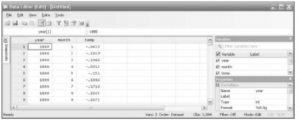
We can now Edit > Select All then copy the information from the Do-File Editor and paste it into an empty Data Editor, using Paste Special with Comma delimiter and Treat first row as variable names options.

Comma-separated values (.csv) files can also be written by any spreadsheet, or by Stata itself, making this a conveniently portable data format. To read a .csv file directly into Stata use an insheet command:

. insheet using C:\data\global.csv, comma clear

Once data are in memory, we can label the data and variables, then save the results as a Stata system file.

. label data “Global climate”

. label variable year “Year”

. label variable month “Month”

. label variable temp “NCDC global temp anomaly vs 1901-2000, C”

. save C:\data\global1.dta

. describe

Source: Hamilton Lawrence C. (2012), Statistics with STATA: Version 12, Cengage Learning; 8th edition.

Specifying Subsets of the Data: in and if Qualifiers

Many Stata commands can be restricted to a subset of the data by adding an in or if qualifier. Qualifiers are also available for many menu selections: look for an if/in or by/if/in tab along the top of the dialog. in specifies the observation numbers to which the command applies. For example, list in 5 tells Stata to list only the 5th observation. To list the 1st through 5th observations, type

The letter l denotes the last case, and -10 , for example, the tenth-from-last. Among the 1,584 months in our global temperature data, which 10 months had the highest temperature anomalies, meaning they were farthest above the 1901-2000 average for that month? To find out, we first sort from lowest to highest by temperature, then list the 10th-from-last to last observations:

Note the important, although typographically subtle, distinction between 1 (number one, or first observation) and l (letter “el,” or last observation). The in qualifier works in a similar way with most other analytical or data-editing commands. It always refers to the data as presently sorted.

The if qualifier also has broad applications, but it selects observations based on specific variable values. For example, to see the mean and standard deviation of temperature anomalies prior to 1970, type

A double equals sign, “ == ”, denotes the logical test, “Is the value on the left side the same as the value on the right?” To Stata, a single equals sign means something different: “Make the value on the left side be the same as the value on the right.” The single equals sign is not a relational operator and cannot be used within if qualifiers. Single equals signs have other meanings. They are used with commands that generate new variables, or replace the values of old ones, according to algebraic expressions. Single equals signs also appear in certain specialized applications such as weighting and hypothesis tests.

Two or more relational operators can be combined within a single if expression by the use of logical operators. Stata’s logical operators are the following:

& and

| or (symbol is a vertical bar, not the number one or letter “el”)

! not (~ also works)

Parentheses allow us to specify the precedence among multiple operators. The following command will summarize January and February temperature anomalies for the years from 1940 through 1969:

. summarize temp if (month == 1 | month == 2) & year > = 1940 & year < 1970

A note of caution regarding missing values: Stata ordinarily shows missing values as a period, but in some operations (notably sort and if, although not in statistical calculations such as means
or correlations), these same missing values are treated as if they were large positive numbers. For example, suppose that we are analyzing opinion poll data. A command such as the following would tabulate vote not only for people age 65 and older, as intended, but also for any people whose age values are missing:

. tabulate vote if age >= 65

Where missing values exist, we often need to deal with them explicitly in the if expression.

. tabulate vote if age >= 65 & !missing(age)

The not missing() function !missing( ) provides a general way to select observations with nonmissing values. As shown later in this chapter, Stata permits up to 27 different missing values codes, although so far we have used only the default “ . ”. if !missing(«ge) sets them all aside. Type help missing for more details.

There are several alternative ways to screen out missing values. The missing( ) function evaluates to 1 if a value is missing, and 0 if it is not. For example, to tabulate vote only for those observations that have nonmissing values of age, income and education, type

. tabulate vote if missing(age, Income, educatlon)==Q

Finally, because the default missing value “.” is represented internally by a very large number, and other missing values (described later) are even larger, a “less than” inequality <. can be used to screen all of them out:

. tabulate vote if age <. & Income <. & education <.

The in and if qualifiers set observations aside temporarily so that a particular command does not apply to them. These qualifiers have no effect on the data in memory, and the next command will apply to all observations unless it too has an in or if qualifier. To drop variables from the data in memory, use the drop command (or use the Data Editor). Returning to our Canadian data (Canadal.dta), we could drop mlife and flife from memory by typing

. drop mlife flife

Either in or if qualifiers can be used to select which observations to drop. For example, drop in 12/13 means to drop the 12th and 13th observation in a dataset. We can also drop selected variables or observations with the Delete button in the Data Editor.

Instead of telling Stata which variables or observations to drop, it sometimes is simpler to specify which to keep. Rather than drop mlife and flife from the Canadal.dta data, we accomplish the same thing if we keep the other three variables.

. keep place pop unemp

Like any other changes to the data in memory, none of these reductions affect disk files until we save the data. At that point, we will have the option of writing over the old dataset (save, replace) and thus destroying it, or just saving the newly modified dataset with a new name (by choosing File > Save As , or by typing a command with the form save newname ) so that both versions exist on disk.

Source: Hamilton Lawrence C. (2012), Statistics with STATA: Version 12, Cengage Learning; 8th edition.

Generating and Replacing Variables in Stata

The generate and replace commands allow us to create new variables or change the values of existing variables. For example, in Canada, as in most industrial societies, women tend to live longer than men. To analyze regional variations in this gender gap, we might retrieve dataset Canadal.dta and generate a new variable equal to female life expectancy (flife) minus male life expectancy (mlife). In the main part of a generate or replace statement (unlike if qualifiers) we use a single equals sign.

For the province of Newfoundland, the true value of gap should be 79.8 – 73.9 = 5.9 years, but the output shows this value as 5.900002 instead. Like all computer programs, Stata stores numbers in binary form, and 5.9 has no exact binary representation. The small inaccuracies that arise from approximating decimal fractions in binary are unlikely to affect statistical calculations much, but they appear disconcerting in data lists. We can change the display format so that Stata shows only a rounded-off version. The following command specifies a fixed display format four numerals wide, with one digit to the right of the decimal:

. format gap %4.1f

Even when the display shows 5.9, however, a command such as the following will return no observations:

. list if gap == 5.9

This occurs because Stata believes the value does not exactly equal 5.9. (More technically, Stata stores gap values in single, float precision but does all calculations in double precision, and the single- and double-precision approximations of 5.9 are not identical.)

Display formats, as well as variables names and labels, can also be changed by double-clicking on a column in the Data Editor. Fixed numeric formats such as %4.1f are one of the three most common numeric display format types. These are

°%w.dg     General numeric format, where w specifies the total width or number of columns displayed and d the minimum number of digits that must follow the decimal point. Exponential notation (such as 1.00e+07, meaning 1.00 x 10⁷ or 10 million) and shifts in the decimal-point position will be used automatically as needed, to display values in an optimal (but varying) fashion.

%w.df       Fixed numeric format, where w specifies the total width or number of columns displayed and d the fixed number of digits that must follow the decimal point.

%w.de        Exponential numeric format, where w specifes the total width or number of columns displayed and d the fixed number of digits that must follow the decimal point.

For example, as we saw in Table 2.1, the 1995 population of Canada was approximately 29,606,100 people, and the Yukon Territory population was 30,100. The table below shows how those two numbers appear under several different display formats.

Although the displayed values look different, their internal values are identical. Calculations remain unaffected by display formats. Other numeric display formatting options include the use of commas, left- and right-justification, or leading zeros. There also exist special formats for dates, time series variables and string variables. Type help format for more information.

replace can make the same sorts of calculations as generate, but it changes values of an existing variable instead of creating a new variable. For example, suppose that we had data on income in dollars. We decide it would be more convenient to work with income in thousands of dollars. To convert dollars to thousands of dollars, we divide all values by 1,000:

. replace income = income/1000

replace can make such wholesale changes, or it can be used with in or if qualifiers to selectively edit the data. Suppose our survey variables include age and year born. A command such as the following would correct one or more typos where a subject’s age had been incorrectly typed as 299 instead of 29:

. replace age = 29 if age = = 299

Alternatively, the following command could correct an error in the value of age for observation number 1453:

. replace age = 29 in 1453

For a more complicated example,

. replace age = 2012-,born if missing(age) | age+1 < 2012-born

This replaces values of variable age with 2012 minus the year of birth (born) if age is missing or if the reported age (plus one year) is less than 2012 minus the year of birth.

generate and replace provide tools to create categorical variables as well. We noted earlier that our Canadian dataset includes several types of observations: 2 territories, 10 provinces and one country combining them all. Although in and if qualifiers allow us to separate these, and drop can eliminate observations from the data, it might be most convenient to have a categorical variable that indicates the observation’s type. The following example shows one way to create such a variable, using our Canadal.dta dataset. We start by generating type as a constant, equal to 1 for each observation. Next, we replace this with the value 2 for the Yukon and Northwest Territories, and with 3 for Canada. The final steps involve labeling new variable type and defining labels for values 1, 2 and 3.

. use C:\data\Canada1, clear . generate type = 1

. replace type = 2 if place == “Yukon” | place = = “Northwest Territories”

. replace type = 3 if place == “Canada”

. label variable type “Province, territory or nation”

. label define typelbl 1 “Province” 2 “Territory” 3 “Nation”

. label values type typelbl

. list

As illustrated, labeling the values of a categorical variable requires two commands. The label define command specifies what labels go with what numbers. The label values command specifies to which variable these labels apply. One set of labels (created through one label define command) can apply to any number of variables (that is, be referenced in any number of label values commands). Value labels can have up to 32,000 characters, but work best for most purposes if they are not too long.

generate can create new variables, and replace can produce new values, using any mixture of old variables, constants, random values and expressions. For numeric variables, the following arithmetic operators apply:

+ add

– subtract

* multiply

/ divide

^ raise to power

Parentheses will control the order of calculation. Without them, the ordinary rules of precedence apply. Of the arithmetic operators, only addition, “+”, works with string variables, where it connects two string values into one.

Although their purposes differ, generate and replace have similar syntax. Either can use any mathematically or logically feasible combination of Stata operators and in or if qualifiers. These commands can also employ Stata’s broad array of special functions, introduced later.

Source: Hamilton Lawrence C. (2012), Statistics with STATA: Version 12, Cengage Learning; 8th edition.

Missing Value Codes in Stata

Examples seen so far involve only a single missing-value code, Stata’s default: a large number which Stata displays as a period. In some datasets, however, values might be missing for several different reasons. We could denote different kinds of missing values by using extended missing- value codes. These are even larger numbers, which Stata displays as “.a” through “.z”. Unlike the default missing-value code “.”, the extended missing-value codes can be labeled.

Different kinds of missing values often arise with surveys, where the question “In what year were you married?” might have no answer because the respondent has never been married, can’t recall, or thinks it’s none of your business. Dataset Granite2011_6.dta, contains data from a political opinion survey, New Hampshire’s Granite State Poll. A question asking respondents about their level of interest regarding the 2012 general election (genint) serves to illustrate Stata’s extended missing-value codes.

At first glance, genint appears straightforward, but for many analyses this variable would be awkward to use.

The first four values, labeled “extremely interested” to “not very interested” form a scale of disinterest. The last two, “don’t know” and “no answer” are not part of this scale but two different kinds of non-answers. Like many other surveys, the Granite State Poll employs particular numbers to represent various non-answers. In this case, the number 98 means the respondent said he or she did not know how interested they were, and 99 means no answer was given. We can see these numerical values if we ask for the same table without value labels.

Any statistics calculated for genint will be confused by the 98 and 99 codes. For example, a table of genint means by respondent education will be meaningless, because those 98 and 99 values have been averaged in.

We need an improved version of this variable, to be called genint2. This new version will be different in three ways. First, we reverse the 1 through 4 values so that higher values indicate greater interest instead of less interest — making interpretation more natural.

. generate genint2 = 5 – genint if genint <90

Second, the 98 and 99 values should be identified as missing so they do not enter calculations for the mean and other statistics. Here we use the missing value code .a to represent “don’t know” responses, formerly coded 98. We use .b to represent “no answer” responses, formerly coded 99.

. replace genint2 = .a if genint == 98

. replace genint2 = .b if genint == 99

Third, the value labels can be shortened from long phrases like “extremely interested” to something that will take up less space in graphs and tables.

. label variable genint2 “Interest in 2012 election (new)”

. label define genint2 1 “Not very” 2 “Somewhat” 3 “Very” 4 “Extremely”  .a  “DK” .b “NA”

. label values genint2 genint2

Finally, a very important step: tabulating old against new variables to be sure that our commands worked as intended.

With these changes we have a more analyzable version. For example, it is easy to see that the average level of interest in the election rises with education.

. tabulate educ, summ(genint2)

Any time we encounter specific numbers (such as 98 and 99 in the example above) used to indicate missing values, it is advisable to change these to missing value codes so that Stata does not enter the fake numbers into statistical calculations. This could be done easily for a whole list of variables using an mvdecode command such as

. mvdecode genint income age, mv(97=. \ 98=.a \ 99=.b)

The example above would change any values of genint, income or age from 97 to “.”, from 98 to “.a” and so forth. The .a and .b (through .z) missing values can accept value labels, but “.” by itself cannot.

As usual, the changes we have made do not become permanent until our dataset is saved. After so much recoding, it makes sense to save these data with a new name — in case, for some future reason, we want to take another look at the original raw data.

Source: Hamilton Lawrence C. (2012), Statistics with STATA: Version 12, Cengage Learning; 8th edition.

Using Functions in Stata

This section lists many of the functions available for use with generate or replace. For example, we could create a new variable named loginc, equal to the natural logarithm of income, by using the natural log function ln in a generate command:

. generate loginc = ln(income)

ln is one of Stata’s mathematical functions. Other examples include log10(x) for base 10 logarithms; int(x) for the integer portion of x; exp(x) for the exponential (e to power) ofx. There are many others; see help math functions for a complete list with details.

Many probability density functions exist as well. Consult help density functions and the reference manuals for a full list and details such as definitions, constraints on parameters, and the treatment of missing values. For example, invnormal(p) gives the inverse cumulative standard normal distribution, or the z value corresponding to probability p. Other functions include beta, binomial, chi-squared, t, F, gamma and uniform distributions. Of particular interest for simulation purposes, runiform() uses a pseudo-random number generator to return values from a uniform distribution theoretically ranging from 0 to nearly 1, written [0,1).

Stata provides many date functions, date-related time series functions, and special formats for displaying time or date variables. Lists and details can be found in the User’s Guide, or by typing help date functions. Date functions often involve elapsed dates, which refer to the number of days since January 1, 1960.

The global temperature dataset we built earlier in this chapter provides an example for elapsed dates. The file contains year and month, but no variable that combines both into a single measure of time.

We can generate a new elapsed-date variable, edate, by using the mdy (month, day, year) function. The global temperature data are monthly averages, so for “day” we might just use the 15 th of each month. (For an alternative approach using monthly data, see the discussion of dataset Climate.dta in Chapter 12.) Because edate represents the number of days since January 1, 1960, dates before 1960 appear as negative numbers.

A more readable dataset results if we format edate as a date variable (%td) showing month (m), century (C) and year (Y). Then the numerical edate -29205 takes the label “Jan1880”.

Finally, we save our data with the new variable. By graphing the global temperature anomaly temp against edate, we can draw a basic time plot.

. sort year month
. order year month edate
. save c:\data\global2.dta, replace
. graph twoway line
temp edate

Other types of functions include matrix functions, random number functions, string functions, time series functions and programming functions. Type help followed by any of these terms to see a complete list. The reference manuals and User’s Guide give further examples and details.

Multiple functions, operators and qualifiers can be combined in one command as needed. The functions and algebraic operators just described can also be used in another way that does not create or change any dataset variables. The display command performs a single calculation and shows the results onscreen. For example:

Thus, display can serve as an onscreen statistical calculator.

Unlike a calculator, display, generate and replace have direct access to Stata’s statistical results. For illustration we return to the Arctic sea ice data introduced in Chapter 1, Arctic9.dta. One variable, extent, represents the mean area covered by at least 15% sea ice in September each
year (graphed earlier in Figure 1.1). For these 33 years of satellite observation, the overall September mean was about 6.52 million km2.

We could use this result to create variable extentO, defined as the anomaly or deviation from the 1979-2011 mean. extentO will have the same standard deviation as extent, but a mean of approximately zero. It reflects how far above or below average each September value is.

Stata temporarily saves results after many analyses, such as r(mean) after summarize. These can be valuable for subsequent calculations or programming. To see a complete list of the names and values currently saved, type return list. In this example, saved values named r(N), r(sum_w), r(mean), and so forth describe the most recent summarize results for extent.

Stata also provides another variable-creation command, egen (extensions to generate), which has its own set of functions to accomplish tasks not easily done by generate. These include such things as creating new variables from the sums, maxima, minima, medians, interquartile ranges, standardized values, ranks or moving averages of existing variables or expressions. For example, the following command creates a new variable named zscore, equal to the standardized (mean 0, variance 1) values of x:

. egen zscore = std(x)

Or, the following command creates new variable avg, equal to the row mean of each observation’s values on x, y, z and w, ignoring any missing values.

. egen avg = rowmean(x,y, z, w)

To create a new variable named total, equal to the row sum of each observation’s values on x, y, z, and w, treating missing values as zeros, type

. egen total = rowtotal(x,y, z, w)

The following command creates new variable xrank, holding ranks corresponding to values of x: xrank = 1 for the observation with highest x. xrank = 2 for the second highest, and so forth.

. egen xrank = rank(x)

Consult help egen for a complete list of egen functions, or the reference manuals for further examples.

Source: Hamilton Lawrence C. (2012), Statistics with STATA: Version 12, Cengage Learning; 8th edition.

Converting Between Numeric and String Formats in Stata

Dataset Canada2.dta contains one string variable, place. It also has a labeled categorical variable, type. Both seem to have nonnumeric values.

Beneath the labels, however, type remains a numeric variable, indicated by a blue font in the Data Editor or Browser. Clicking on that cell will show the underlying numbers, or we can list these asking for the nolabel option:

String and labeled numeric variables behave differently when analyzed. Most statistical operations and algebraic relations are not defined for string variables, so we might want to have both string and labeled-numeric versions of the same information in our data. The encode command generates a labeled-numeric variable from a string variable. The number 1 is given to the alphabetically first value of the string variable, 2 to the second, and so on. The following example creates a labeled numeric variable namedplacenum from the string variable place:

. encode place, gen(placenum)

An opposite conversion is possible, too: The decode command generates a string variable using the values of a labeled numeric variable. Here we create string variable typestr from numeric variable type:

. decode type, gen( typestr)

When listed, the new numeric variable placenum, and the new string variable typestr, look similar to the originals:

But with the nolabel option, the differences become visible. Stata views placenum and type basically as numbers.

. list place placenum type typestr, nolabel

Most statistical analyses, such as finding means and standard deviations, work only with numeric variables. For calculation purposes, their labels do not matter.

Occasionally we encounter a string variable where the values are all or mostly numbers. To convert these string values into their numeric counterparts, use the real function. For example, in the artificial dataset below, the variable siblings is a string variable, although it only has one value, “4 or more,” that could not be represented just as well by a number.

The new variable sibnum is numeric, with a missing value where siblings had “4 or more.” . list

.list

The destring command provides a more flexible method for converting string variables to numeric. In the example above, we could have accomplished the same thing by typing

. destring siblings, generate(sibnum) force

See help destring for information about syntax and options.

Source: Hamilton Lawrence C. (2012), Statistics with STATA: Version 12, Cengage Learning; 8th edition.

Creating New Categorical and Ordinal Variables in Stata

A previous section illustrated how to construct a categorical variable called type to distinguish among territories, provinces and nation in our Canadian dataset. You can create categorical or ordinal variables in many other ways. This section gives a few examples.

Suppose we want to re-express type as a set of dichotomies or dummy variables, each coded 0 or 1. tabulate will create dummy variables automatically if we add the generate option. In the following example, this results in a set of variables called typel, type2 and type3, each representing one of the three categories of type:

Re-expressing categorical information as a set of dummy variables involves no loss of information; in this example, typel through type3 together tell us exactly as much as type itself does. Occasionally, however, analysts choose to re-express a measurement variable in categorical or ordinal form, even though this does result in a substantial loss of information. For example, unemp in Canada2.dta gives a measure of the unemployment rate. Excluding Canada itself from the data, we see that unemp ranges from 7% to 19.6%, with a mean of 12.26: . summarize unemp if type != 3

Two commands create a dummy variable named unemp2 with values of 0 when unemployment is below average (12.26), 1 when unemployment is equal to or above average, and missing when unemp is missing. In reading the second command, recall that Stata’s sorting and relational operators treat missing values as very large numbers.

. generate unemp2 = 0 if unemp < 12.26

(7 missing values generated!

. replace unemp2 = 1 if unemp > = 12.26 & !missing(unemp)

(5 real changes narlei

We might want to group the values of a measurement variable, thereby creating an ordered- category or ordinal variable. The autocode function (see Using Functions) provides automatic grouping of measurement variables. To create new ordinal variable unemp3, which groups values of unemp into three equal-width groups over the interval from 5 to 20, type

. generate unemp3 = autocode(unemp,3,5,20)

(2 missing values generated)

A list of the data shows how the new dummy (unemp2) and ordinal (unemp3) variables correspond to values of the original measurement variable unemp.

Source: Hamilton Lawrence C. (2012), Statistics with STATA: Version 12, Cengage Learning; 8th edition.

Using Explicit Subscripts with Variables in Stata

When Stata has data in memory, it also defines certain system variables that describe those data. For example, _N represents the total number of observations. _n represents the observation number: _n = 1 for the first observation, _n = 2 for the second, and so on to the last observation ( _n = _N ). If we issue a command such as the following, it creates a new variable, caselD, equal to the number of each observation as presently sorted:

. generate caselD = _n

Sorting the data another way will change each observation’s value of _n , but its caselD value will remain unchanged. Thus, if we do sort the data another way, we can later return to the earlier order by typing

. sort caselD

Creating and saving unique case identification numbers that store the order of observations at an early stage of dataset development can facilitate later data management.

We can use explicit subscripts with variable names, to specify particular observation numbers. For example, the 4th observation in our global temperature dataset global2.dta is April 1880, with a temperature anomaly (temp) of -.0912 °C.

. display temp[4]

-.0912

Similarly, temp[5] is the temperature anomaly for May 1880, -.151 °C:

. display temp[5]

-.15099999

Explicit subscripting and the _n system variable have particular relevance when our data form a series. In this temperature example, either temp or, equivalently, temp[ _n] denotes the value of the _nth observation. temp[ _n-1] denotes the previous temperature, and temp[ _n+1] denotes the next. Thus, we might define a new variable diftemp, which is equal to the change in temp since the previous month:

. generate diftemp = temp – temp[_n-1]

Chapter 12 on time series analysis returns to this topic.

Source: Hamilton Lawrence C. (2012), Statistics with STATA: Version 12, Cengage Learning; 8th edition.

Importing Data from Other Programs to Stata

Previous sections illustrated how to enter and edit data using the Data Editor. If our original data reside in an appropriately formatted spreadsheet, we just can copy and paste blocks of data from the spreadsheet into the empty Data Editor. Alternatively, Stata can import data from Excel spreadsheets directly through menu selections

File > Import > Excel spreadsheet (*.xls; *.xlsx)

or the import excel command. In the simplest case, we could import the first sheet in a spreadsheet file named snowfall.xls by typing the command

. import excel using C:\data\snowfall.xls, clear

But spreadsheets often contain titles, notes, subtables, multiple sheets, graphs or other features that complicate the process of reading them as data. To restrict the import operation to a particular range of cells, use a cellrange() option. The sheet() option can specify what sheet within the spreadsheet to import. A firstrow option tells Stata the first row of these cells contain variables names. For example, in spreadsheet snowfall.xls the first sheet, named “Berlin”, contains historical snowfall records for the town of Berlin, New Hampshire, as discussed in Hamilton et al. (2003). The data of interest reside in cells A5 through O56. Row 4 contains variable names.

. import excel using C:\data\snowfall.xls, sheet(“Berlin”) cellrange(a4:o56) firstrow clear

Although the import excel feature is fairly robust, some preparation of the Excel spreadsheet may speed the transition to an analyzable Stata dataset. For example, if there are variable names in the spreadsheet these should meet Stata criteria such as starting with a letter or underscore, and have no embedded blanks. Missing values should be replaced with blanks or numerical codes, and non-numeric characters removed from cells in columns meant to represent numerical variables.

Stata automatically decides whether each data column represents a numeric or string variable. If there are non-numeric values in a column, Stata takes that column to be a string variable, for which statistical calculations such as means and correlations will not be possible. If most of the values really are numeric, we could generate a new numerical version of that variable (with its actual string values coded as missing) using the real() function.

. generate newvar = real(oldvar)

Similar care is needed when we copy and paste from a spreadsheet into the Data Editor. Before selecting the block of data to copy, editing of the spreadsheet might be needed. One nice trick is to insert a row of variable names right above the top row of data in our spreadsheet. Then copy the row of names along with the rest of the data, and use Paste Special with Treat first row as variable names to place all of this information into an empty Data Editor.

The spreadsheet and Data Editor methods are quick and easy, but for larger projects it is important to have tools that work directly with computer files created by other statistical programs such as SAS or SPSS. SAS XPORT files can be imported through Stata menu choices

File > Import > SAS XPORT

or the import sasxport command. Other data formats can be read through the intermediate form of text files, or translated directly by a special third-party program.

We can illustrate text file methods with another climate-themed time series. El Nino-Southern Oscillation (ENSO) is a quasi-periodic climate pattern centered in the tropical Pacific Ocean but affecting other regions as well. The Multivariate ENSO Index (MEI) combines six observed variables describing tropical Pacific conditions (sea-level pressure, zonal and meridional surface winds, sea surface and surface air temperature, and cloudiness) into a single indicator for ENSO. Text file MEI.raw contains monthly values of MEI from January 1950 through December 2011. These are tab-separated values, a common format for text files written by spreadsheets. The first row of the text file contains a list of variable names: meil for January MEI, mei2 for February, and so forth (actually the “January” MEI value represents December-January, and February represents January-February, etc.). The first few rows of the text file look like this:

We can read these data into Stata using the insheet command, with options to specify that values are tab-separated, and the first row contains variable names. After reading in the raw data we save them as a Stata-format file named MEIO.dta, which will be used again later.

With a comma option instead of tab, insheet could read a text file of comma-separated values, which are another common spreadsheet output format. Text files can be read through Stata menus as well. Explore Data > Import to see the options available.

The examples so far assumed that raw data values are separated by commas, tabs or other known delimiters (which could be replaced with commas or tabs). A different arrangement calledfixed- column format has values that are not necessarily delimited at all, but do occupy predefined column positions. The infix command can read such files. In the command syntax itself, or in a data dictionary existing in a separate file or as the first part of the data file, we have to specify exactly how the columns should be read.

Here is a simple example. Data exist in a text (ASCII) file named nfresour.raw:

These data concern natural resource production in Newfoundland. The four variables occupy fixed column positions: columns 1-4 are the years (1986…1991); columns 5-8 measure forestry production in thousands of cubic meters (2408…missing); columns 9-14 measure mine production in thousands of dollars (764,169…793,000); and columns 15-18 are the consumer price index relative to 1986 (1000…1262). Notice that in fixed-column format, unlike whitespace or tab-delimited files, blanks indicate missing values, and the raw data contain no decimal points. To read nfresour.raw into Stata, we specify each variable’s column position:

More complicated fixed-column formats might require a data dictionary. Data dictionaries can be straightforward, but they offer many possible choices. Type help import to see an outline of these commands. For more examples and explanation, consult the User’s Guide and reference manuals. Stata also can load, write, or view data from ODBC (Open Database Connectivity) sources; see help odbc.

What if we need to export data from Stata to some other, non-ODBC program? export excel and export sasxport commands, or corresponding menu selections from

File > Export > Excel spreadsheet (*.xls; *.xlsx) File > Export > SAS XPORT

will write Excel spreadsheets or SAS XPORT files. The outsheet and outfile commands (or Data > Export ) can write text files in several different formats. Another very quick possibility is to copy your data from Stata’s Data Editor or Data Browser and paste this directly into a spreadsheet such as Excel. Often the best option, however, is to transfer data directly between the specialized system files saved by various spreadsheet, database or statistical programs. Some third-party programs perform such translations. Stat/Transfer, for example, will transfer data across many different formats including dBASE, Excel, FoxPro, Gauss, JMP, MATLAB, Minitab, OSIRIS, Paradox, R, S-Plus, SAS, SPSS, SYSTAT and Stata. Even large datasets hundreds of megabytes in size can be translated or excerpted quickly with this program. It is available through StataCorp (www.stata.com) or from its maker, Circle Systems (www.stattransfer.com). Transfer programs prove indispensable for analysts working in multi­program environments or exchanging data with colleagues.

One distinguishing feature of Stata is worth mentioning here. Stata datasets saved on one Stata platform (whether Windows, Mac or Unix) can be read without translation by Stata on any of the other platforms. To make a data file that can be read by an earlier version of Stata on any of these platforms, use the saveold command instead of save, or select

Save As > Save as type > Stata 9/10 Data from the menus.

Source: Hamilton Lawrence C. (2012), Statistics with STATA: Version 12, Cengage Learning; 8th edition.

Combining Two or More Stata Files

We can combine Stata datasets in two general ways: append a second dataset that contains additional observations, or merge with other datasets that contain new variables or values. For example, file lakewinl.dta contains the ice-out dates for New Hampshire’s largest lake, recorded by local observers over 121 years from 1887 through 2007.

In 2007, Lake Winnipesaukee ice out occurred on April 23, the 113th day of the year.

File lakewin2.dta contains newer data from 2008 through 2012. It has the same variables and format, so we can combine the update in lakewin2.dta with the older information in lakewinl.dta, using the append command.

. use C:\data\lakewin2.dta

(Lake Winnipesaukee ice oul 2008-2012)

. describe

In this example, both datasets contained the same variables, although that is not necessary for append to work. Variables that exist only in one of the appended datasets are assigned missing values for observations from the other dataset, when the two are combined.

append might be compared to lengthening a sheet of paper (that is, the dataset in memory) by taping a second sheet with new observations (rows) to its bottom. merge, in its simplest form, corresponds to widening our sheet of paper by taping a second sheet to its right side, thereby adding new variables (columns).

File lakesun.dta contains ice out dates for New Hampshire’s second-largest lake over the years 1869 through 2012. Although the Lake Sunapee (lakesun.dta) and Lake Winnipesaukee (lakewin3.dta) records come from different sources, both form yearly series that could easily be combined into one dataset. We do this with the merge 1:1 year command.

. use C:\data\lakesun.dta

Both datasets were already sorted by year; if they were not, we would have to sort year before merging. The merge results tell us that 126 years were present in both the “master” dataset (the data currently in memory—lakesun.dta in this example) and the “using” dataset (lakewin3.dta). A further 18 years (1869 to 1886) existed only in lakesun.dta, so the Lake Winnipesaukee variables will have missing values in those years. merge commands create a variable named merge that records whether the observation came from the master data only ( merge = 1), the using data only (merge = 2), or from both (merge = 3). It is an important step to review merge values carefully after each merge operation, making sure things turned out as planned. Before performing another merge operation, we must drop or rename merge.

In this example, we simply used merge to add new variables to our data, matching observations on year. By default, whenever the same variables are found in both datasets, those of the master data are retained and those of the using data ignored. The merge command has several options, however, that override this default. A command of the following form would allow any missing values in the master data to be replaced by corresponding nonmissing values found in the using data (here, newdata.dta):

. merge 1:1 year using newdata.dta, update

Or, a command such as the following causes any values from the master data to be replaced by nonmissing values from the using data, if the latter are different:

. merge 1:1 year using newdata, update replace

All of these examples show simple 1-to-1 merging. Also possible are 1-to-many (1:m), many- to-1 (m:1) or many-to-many (m:m) operations. Type help merge for details, and see the Data Management manual for further examples. Merging and appending data can be accomplished through Data > Combine datasets menus, as well.

Source: Hamilton Lawrence C. (2012), Statistics with STATA: Version 12, Cengage Learning; 8th edition.

Collapsing Data in Stata

Long after a dataset has been created, we might discover that for some purposes it has the wrong organization. Fortunately, several commands facilitate drastic restructuring of datasets. The simplest of these, collapse, aggregates data into means, medians or other statistics for groups defined by one or more variables. For illustration, we return to the data on monthly global temperatures from January 1880 to December 2011 (global2.dta), graphed earlier in Figure 2.1.

With collapse, we could build a simplified dataset containing mean temperature anomalies for 132 years instead of 1,584 separate months.

. collapse (mean) temp, by(year)

. label variable temp “NCDC annual mean temp anomaly, deg C”

. save C:\data\global_yearly.dta, replace

. describe

Our new annual dataset might be visualized with a spike plot, in which vertical spikes indicate distance of each year’s temperature anomaly above or below the 1901-2000 mean.

A wider range of statistics can be collected using the flexible statsby command, which works as a prefix for other analyses. In the following example we return to global2.dta and generate a new variable called decade (1880 for years 1880-1889, 1890 for 1890-1899, and so forth). Then we create a new dataset consisting of summarize statistics for temperature, by decade.

The new dataset contains number of observations, mean, variance, maximum and other summarize statistics for each decade. Figure 2.3 graphs the maximum monthly temperature anomaly (max) for each decade (setting aside the “2010” decade which just has two years).

statsby can also make datasets of results from regression models or other analyses. Type help statsby or consult the Data Management Reference Manual for more information and examples. Selecting

Statistics > Other > Collect statistics for a command across a by list

from the menus brings up the dialog box for this command. Another useful aggregation command, contract, creates a dataset that resembles a frequency table for any combinations of specified variables (see help contract).

Source: Hamilton Lawrence C. (2012), Statistics with STATA: Version 12, Cengage Learning; 8th edition.

Reshaping Data in Stata

A different sort of restructuring is possible through the reshape command. This command switches datasets between two basic configurations termed wide and long. Earlier in this chapter we built a dataset with the Multivariae ENSO Index (MEIO.dta). The data are in wide format: years define the rows, but each month is a separate column. Thus, meil represents the MEI value for January, mei2 is February, and so on.

. use C:\data\MEI0.dta, clear

. describe


We can reshape these wide-format data into a time series in long format. The following command names a new variable to be created, mei. Each row of the new long-format dataset will have an observation identifier, i(year), and sub-observation identifier, j(month).

Now we have the Multivariate ENSO Index time series in year/month form, similar to the year/month time series of global surface temperatures (global2.dta) we built earlier. With both datasets sorted by year and month, we can merge the two into a common file.

The temperature data in global2.dta cover each month from January 1880 through December 2011, whereas meil.dta covers only January 1950 through December 2011. Consequently, 70*12 = 840 months exist only in the master data and are not matched; the remaining 12*62 = 744 months exist in both datasets and are matched one to one.

After saving the new merged data as global3.dta, we can draw a time plot with both temperature and mei over the years 1950-2011. These two variables have different scales, so mei is assigned to the right-handy axis, denoted yaxis(2). The graph command below overlays two line plots, one for temp and one for mei, the latter drawn with a dashed line. The command also specifies a legend with two rows, instead of the default here which would be two columns. A first look at the graph suggests that global temperature and the ENSO index often vary together from year to year, but ENSO lacks the decadal upward trend of temperature. Chapter 12 applies time series modeling for a more rigorous analysis of this point.

. sort year month

. drop _merge

. compress

reshape works equally well in reverse, to switch data from long to wide format. We could convert the year/month time series of temperature and MEI into a wide dataset in which each row was a year, and each column a variable/month, by the following commands (not shown).

. drop edate

. reshape wide mei temp, i(year) j(month)

Source: Hamilton Lawrence C. (2012), Statistics with STATA: Version 12, Cengage Learning; 8th edition.